How to Check If Your Webcam Is Being Accessed Without Permission

Imagine sitting in front of your computer late at night, browsing the web or working on a personal project. Your laptop rests open on the desk, the small green or white LED light next to the camera lens glowing faintly—or perhaps remaining entirely dark. To most users, that tiny lens is just a tool for video calls with colleagues, family, or friends. But behind that glass lies a potential vulnerability that millions of internet users overlook every single day: unauthorized webcam access.
Webcam spying, often referred to in the cybersecurity world as camfecting, is a very real threat. Malicious actors, hackers, and cybercriminals use specialized remote access trojans (RATs) to hijack webcams without the owner’s knowledge or consent. Once inside, they can capture photos, record private video feeds, or even use the footage to blackmail victims.
Understanding how to check if your webcam is being accessed without permission is no longer an optional skill reserved for IT professionals. In an era where remote work, smart homes, and connected devices dominate our daily lives, securing your personal privacy is an absolute necessity. This comprehensive guide will walk you through the advanced techniques, hidden indicators, native operating system tools, and robust security practices you need to ensure your webcam remains entirely under your control.
Understanding Camfecting: How Unauthorized Webcam Access Happens

Before diving into detection and prevention, it is vital to understand how unauthorized webcam access actually occurs. Gaining a clear picture of the threat helps you anticipate risks and harden your digital defenses.
Cybercriminals rarely hack webcams using brute-force attacks against physical hardware. Instead, they exploit software vulnerabilities, human psychology, and unsecured network connections. The most common vector for webcam compromise is malicious software known as a Remote Access Trojan (RAT).
Common Infection Vectors
- Phishing Emails: Clicking on an unverified link or downloading an infected attachment (often disguised as an invoice, shipping notification, or tax document) can silently install a RAT in the background.
- Pirated Software and Cracked Games: Downloading unauthorized software from unverified torrent sites or third-party app stores frequently bundles hidden spyware and keyloggers that include webcam-hijacking capabilities.
- Outdated Operating Systems and Browsers: Failing to install the latest security patches leaves known vulnerabilities wide open, allowing drive-by downloads to execute code without user interaction.
- Compromised Smart Home Ecosystems: In some cases, poorly secured Internet of Things (IoT) devices or smart displays connected to the same home network can serve as lateral entry points into a personal computer.
Once a RAT is installed, it runs silently as a background process. It bypasses the operating system’s standard user interface, meaning the malware can stream your video feed directly to a remote command-and-control server without triggering any visible window on your desktop.
1. Check the Hardware Indicator Light (LED)
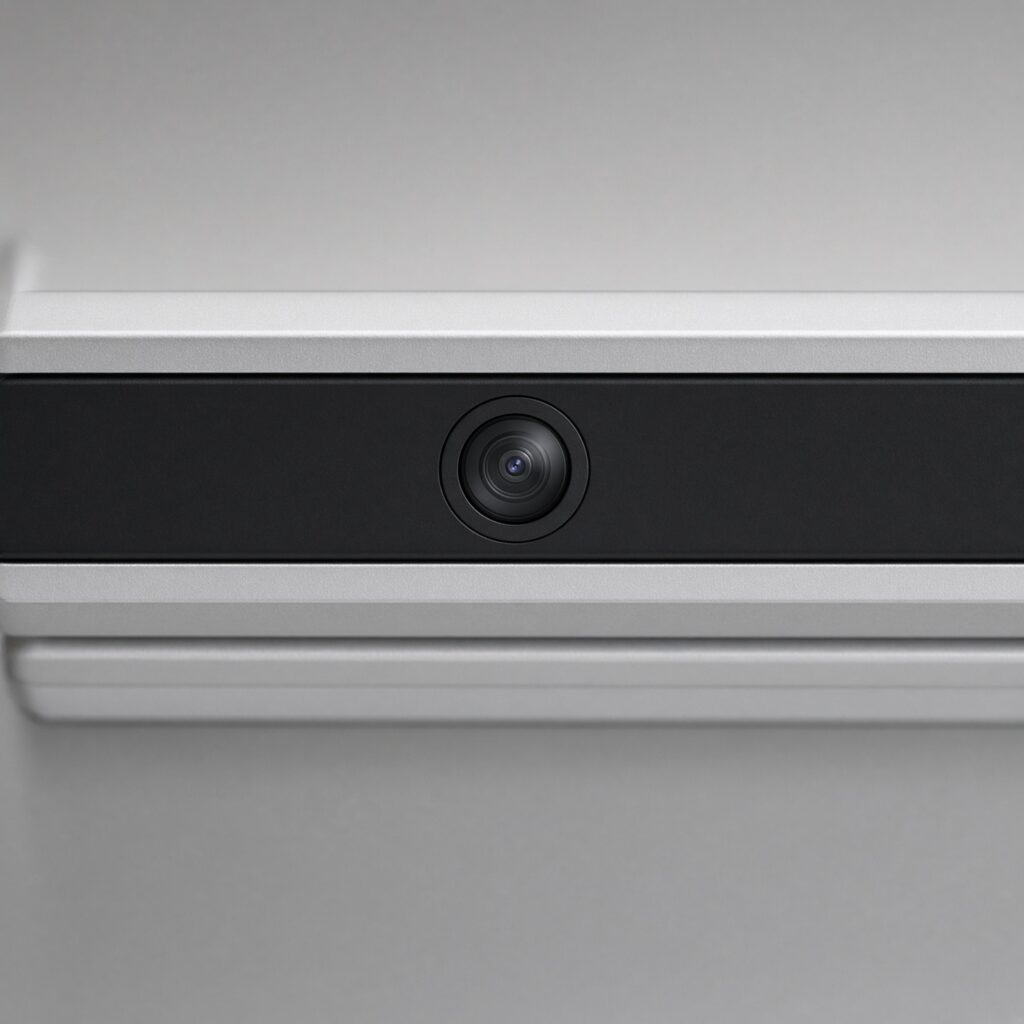
The simplest and most immediate physical indicator of webcam activity is the small LED indicator light positioned directly next to or integrated within the camera lens assembly on most modern laptops and external monitors.
How Hardware-Level Integration Works
On the vast majority of consumer laptops manufactured over the last decade, the webcam’s hardware design links the power circuit of the camera sensor directly to the circuit powering the LED indicator light. In these hardwired configurations, whenever electrical current flows to the camera sensor to capture video, that exact same current path powers the LED.
This means that if the camera is actively recording or streaming, the light must turn on.
Important Caveats and Limitations
While the LED light is a powerful frontline indicator, it is not foolproof:
- Software-Controlled LEDs: On certain specialized or high-end business laptops, the LED light is controlled entirely by software drivers rather than a hardwired circuit. In theory, a sophisticated malware strain that gains kernel-level access could disable or suppress the LED driver while keeping the camera sensor fully operational.
- External USB Webcams: Many standalone webcams connected via USB do not enforce a hardwired link between the sensor and the indicator light, making software-based disabling more feasible for advanced attackers.
Best Practice: Never rely solely on the LED light. Treat it as a helpful preliminary warning sign, but always verify your system’s software permissions and active processes using the steps outlined below.
2. Monitor Active Camera Permissions in Windows
Modern operating systems like Microsoft Windows provide robust permission managers that allow users to audit which applications have access to hardware peripherals like the microphone and webcam. Checking these settings takes only a few moments and reveals unauthorized software instantly.
Step-by-Step Guide for Windows 10 and Windows 11
- Click the Start Menu and open Settings (or press
Windows Key + I). - Navigate to Privacy & Security (in Windows 11) or Privacy (in Windows 10).
- Scroll down the left-hand sidebar under the App permissions section and click on Camera.
- Review the master toggle switch labeled Camera access. Ensure it is enabled only when you intend to use the camera.
- Scroll down to the list of individual applications and services with permission to access your camera.
- Examine every single entry carefully. Look for unfamiliar third-party tools, background utilities, or web browsers you do not recognize.
- Toggle off the switch for any application that does not strictly require webcam access.
+-------------------------------------------------------------+
|               Windows Camera Privacy Audit                  |
+-------------------------------------------------------------+
|  [v] Camera Access for this device is On                    |
|                                                             |
|  App Permissions Checklist:                                 |
|  - Microsoft Teams      --> Allowed                         |
|  - Zoom                 --> Allowed                         |
|  - Unknown Background   --> BLOCKED (Potential Threat)      |
+-------------------------------------------------------------+
Additionally, Windows 10 and 11 feature a visual indicator in the system tray (notification area). When an application actively accesses your camera, a small camera icon appears on the taskbar. Hovering your mouse cursor over this icon displays the exact name of the application utilizing the hardware.
3. Inspect Camera Permissions and Access on macOS
Apple’s macOS places heavy emphasis on user privacy and hardware security, implementing strict sandboxing for peripheral devices. If an application attempts to access your FaceTime HD camera, macOS requires explicit user authorization.
How to Audit Webcam Access on macOS
- Click the Apple Menu in the top-left corner of your screen and select System Settings (or System Preferences on older versions).
- Scroll down the sidebar and select Privacy & Security.
- Click on Camera to open the complete list of applications that have requested or been granted webcam access.
- Review the toggles next to each application name. If you spot an app that has no business using your camera—such as a PDF reader, a game launcher, or an untrusted utility—immediately switch the toggle to the Off position.
macOS Hardware Indicators
Apple laptops equipped with FaceTime HD cameras feature a green indicator light next to the lens. Furthermore, starting with recent versions of macOS, the menu bar displays a glowing orange or green dot in the top-right corner whenever the microphone or camera is actively engaged by any running process.
4. Analyze Running Processes and Active Network Connections
If you suspect that a stealthy RAT or background spyware is streaming your webcam feed without your consent, you need to dive beneath the graphical user interface and examine active system processes and network sockets.
Checking Running Processes in Windows (Task Manager)
- Press
Ctrl + Shift + Escto open the Task Manager. - Click on the Processes tab and review the applications and background processes running under your user account.
- Look for suspicious executable files (.exe) with random alphanumeric names, high CPU utilization, or unfamiliar publishers.
- Right-click any questionable process and select Search online to investigate its legitimacy.
- If a process appears malicious, right-click and select End task.
Inspecting Active Network Connections (Command Prompt)
Remote Access Trojans must transmit your video data back to the attacker’s server over the internet. By examining active network connections, you can identify if an unknown program is communicating with an external IP address.
- Open the Windows Start Menu, type
cmd, right-click Command Prompt, and select Run as administrator. - Type the following command and press Enter:
netstat -ano | findstr ESTABLISHED - This command lists all active network connections along with their Process IDs (PIDs).
- Cross-reference any unfamiliar remote IP addresses or high-port connections with your Task Manager’s PID column to determine which application is establishing the connection.
5. Utilize Advanced Anti-Malware and Antivirus Scans
Standard operating system audits catch misconfigured permissions, but dedicated security software is required to root out deeply embedded malware, rootkits, and polymorphic trojans designed to evade manual detection.
Choosing and Running Effective Security Scans
- Endpoint Detection and Response (EDR) / Antivirus: Ensure you have a reputable, up-to-date security suite installed (such as Windows Defender, Bitdefender, Malwarebytes, or Kaspersky).
- Perform a Full System Scan: Do not rely solely on quick scans. Run a comprehensive, deep system scan that inspects every sector of your hard drive, registry keys, and startup folders.
- Specialized Anti-Spyware Tools: Utilities like Malwarebytes specialize in hunting down adware, spyware, and RATs that traditional antivirus engines occasionally miss.
Quarantine and Removal
If your security software flags a suspicious file associated with your webcam or microphone drivers, immediately follow the software’s recommendation to quarantine or delete the file. Following malware removal, perform a complete system reboot and rerun the scan to verify the threat has been successfully eradicated.
6. Hardware Solutions: The Ultimate Physical Guarantee
No matter how advanced your operating system security settings are, software configurations can always be compromised by zero-day exploits or severe system misconfigurations. The absolute, foolproof method to guarantee your webcam is never accessed without permission is to implement physical blocking.
Physical Privacy Shutters and Slider Covers
Many modern laptops (especially business-class notebooks from Lenovo, HP, and Dell) now come equipped with built-in physical privacy shutters. These are small mechanical slides that glide across the lens, physically blocking the field of view.
If your laptop does not feature a built-in shutter, you can purchase inexpensive stick-on webcam covers or privacy sliders online.
+-------------------------------------------------------------+
|              Physical Protection Comparison                 |
+-------------------------------------------------------------+
|  [✓] Built-in Sliding Shutters -> Clean, durable, aesthetic |
|  [✓] Stick-on Privacy Sliders  -> Inexpensive, universal    |
|  [!] Post-it Notes / Tape      -> Simple, but leaves residue|
+-------------------------------------------------------------+
Important Warning Regarding Laptop Damage
When choosing a webcam cover for modern ultra-thin laptops (such as MacBooks or slim Windows ultrabooks), be extremely cautious. The clearance between the display glass and the keyboard deck when closed is often a fraction of a millimeter. Thick plastic slider covers can exert excessive pressure on the screen when the lid is closed, leading to costly LCD panel cracking or backlight failure. Always choose ultra-thin metal sliders or removable magnetic covers designed specifically for your laptop model.
7. Best Practices for Long-Term Webcam Security
Securing your webcam is not a one-time task; it requires maintaining consistent cyber hygiene across all your digital devices. Incorporate these foundational habits into your routine:
- Keep Everything Updated: Enable automatic updates for your operating system, web browsers, and all installed software. Software patches frequently close security vulnerabilities that hackers exploit to gain remote access.
- Exercise Phishing Caution: Never click on links in unsolicited emails, text messages, or direct messages on social media. Verify the sender’s domain before downloading any files.
- Download Safely: Only download applications, games, and utilities from official app stores (such as the Microsoft Store, Mac App Store) or verified developer websites. Avoid pirated software entirely.
- Secure Your Home Network: Change the default administrator credentials on your Wi-Fi router, use strong WPA3 encryption, and keep your router’s firmware updated to prevent man-in-the-middle network attacks.
- Revoke Browser Permissions: Modern browsers like Google Chrome, Mozilla Firefox, and Microsoft Edge ask permission before allowing websites to access your camera. Periodically review your browser settings and revoke camera permissions from sites you no longer use.
Take Control of Your Digital Privacy
Your webcam is a powerful portal connecting you to the world, but without proper vigilance, it can also serve as an open window for unauthorized observers. By understanding how camfecting occurs, regularly auditing your Windows and macOS privacy permissions, monitoring active background processes, running rigorous anti-malware scans, and employing physical lens covers when the camera is not in use, you create an impenetrable barrier around your personal privacy.
Staying safe online does not require paranoia—it requires proactive awareness. Take five minutes today to review your system settings, check your app permissions, and secure your devices so you can browse, work, and connect with total peace of mind.