What to Do When You Accidentally Click a Suspicious Link

Every single day, millions of people browse the internet at lightning speed. We check emails during our morning commutes, scroll through social media feeds while waiting in line, and click on search results without a second thought. With so much digital noise, accidents happen. You might glance at a notification, tap a link, and immediately realize something feels wrong. Maybe the webpage looks strange, asks for your password out of nowhere, or redirects you to a bizarre domain.
If you just clicked a suspicious link, take a deep breath. Do not panic. While clicking a malicious link can expose you to security risks, taking the right steps immediately can neutralize the threat before it causes real damage. This comprehensive guide will walk you through exactly what happens behind the scenes, the step-by-step emergency actions you must take right now, and how to fortify your digital life moving forward.
Understanding the Threat: What Happens When You Click a Bad Link?
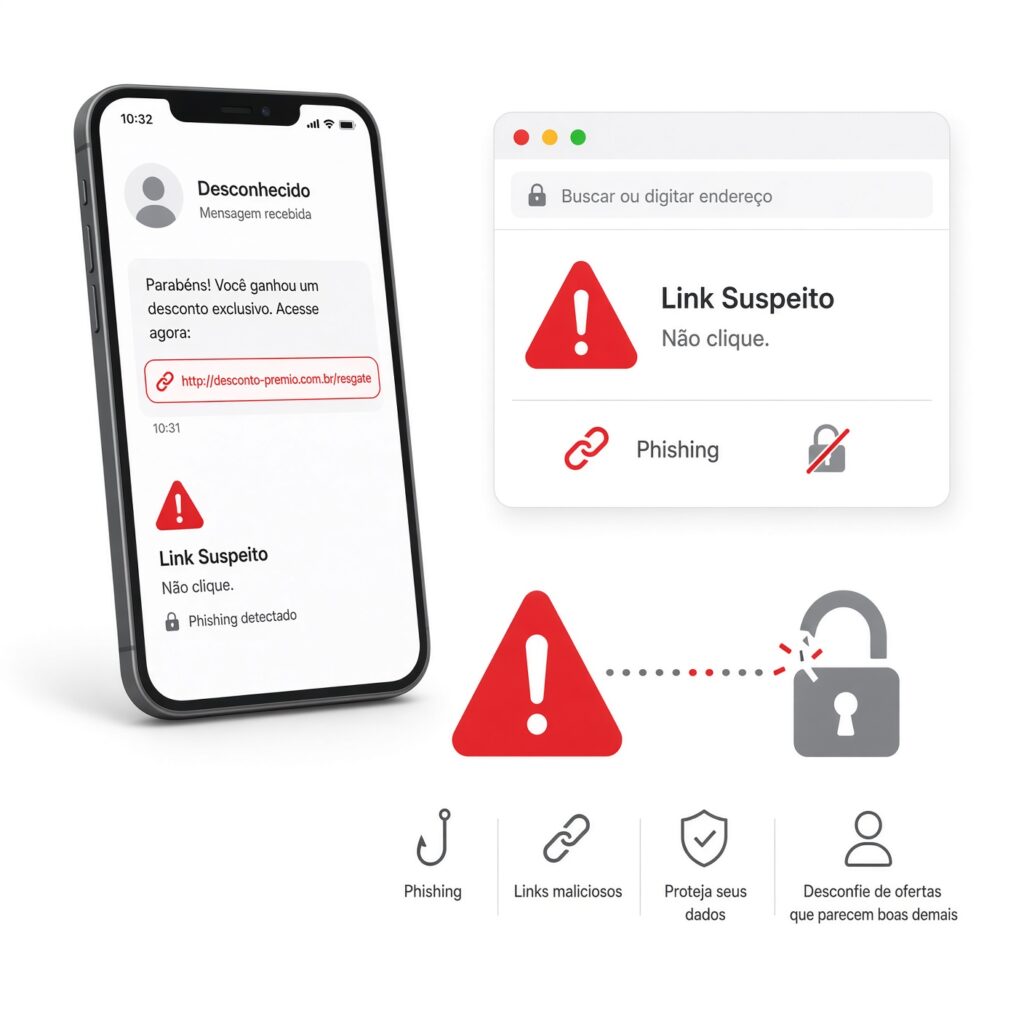
Before jumping into the emergency steps, it helps to understand what a malicious link actually tries to accomplish. Not all suspicious links are created equal. When cybercriminals set traps, they typically rely on a few distinct mechanisms:
- Drive-By Downloads: In rare and sophisticated attacks, simply visiting a compromised website can trigger an automatic download of malicious software, spyware, or ransomware onto your device without your explicit permission.
- Credential Harvesting Phishing Pages: The most common trap involves fake login screens designed to mimic trusted services like your bank, email provider, or streaming service. If you type your username and password into these forms, attackers steal your credentials instantly.
- Malicious Redirects: You click what looks like a news article, but the link bounces you through multiple hidden tracking domains before landing on a scam page, a fake tech support pop-up, or an advertisement-heavy survey trap.
- Session Hijacking: If you are already logged into certain accounts, malicious scripts can attempt to abuse active browser cookies to gain unauthorized access to your sessions.
Knowing these tactics helps explain why the actions outlined in the next sections are so crucial. Quick intervention breaks the chain of attack.
Step 1: Disconnect Your Device from the Internet Immediately
If you suspect you have just triggered a malware download or if your browser is acting erratically after clicking a link, your very first line of defense is physical isolation. Disconnecting your device from the internet stops ongoing communication between your computer or smartphone and the attacker’s command-and-control server.
How to disconnect effectively:
- Wi-Fi and Cellular Data: Turn off Wi-Fi on your laptop or toggle Airplane Mode on your smartphone immediately. If you are using a desktop connected via an Ethernet cable, physically unplug the cable from the back of the machine.
- Why this matters: If malware managed to download quietly in the background, cutting the internet connection prevents it from exfiltrating your personal documents, logging your keystrokes in real time, or downloading additional payload files from the web.
Step 2: Close the Browser Tab and Clear Suspicious Activity
If the page you landed on is simply a phishing scam or a fake warning message trying to trick you into calling a bogus support number, you can usually deal with it directly within your browser—provided you did not enter any sensitive information.
Follow these steps to safely close out of the hazard:
- Force Quit the Browser: Sometimes malicious scripts freeze your browser window or trigger endless pop-up loops. Do not click “Cancel” or “OK” on any pop-ups. Instead, use your system’s task manager (Ctrl+Shift+Esc on Windows, Command+Option+Esc on Mac) to force-close the browser entirely.
- Clear Recent Cache and Cookies: Open your browser settings and clear your browsing data from the last hour. This ensures that any temporary session tokens or tracking scripts left behind by the landing page are purged.
- Check for Rogue Extensions: Occasionally, deceptive sites try to trick users into installing browser extensions. Go to your browser’s extension manager and remove any unfamiliar or recently added plugins immediately.
Step 3: Run a Deep Offline Antivirus and Malware Scan
Once your device is safely disconnected from the internet, it is time to check for hidden infections. Even if your screen looks normal, sophisticated threats can lurk in background processes.
Launch your trusted security software and execute a comprehensive system scan. If you do not have a dedicated antivirus program installed, modern operating systems include powerful built-in tools like Windows Defender or macOS security features. For an extra layer of assurance, running a reputable secondary scanner like Malwarebytes can catch adware, trojans, and browser hijackers that standard tools might miss.
Allow the scan to run completely. If the software flags any quarantined files or malicious threats, follow the prompt to clean, remove, or quarantine them permanently.
Step 4: Change Critical Passwords and Enable Multi-Factor Authentication
If you typed any personal information, usernames, or passwords into the suspicious webpage you landed on, you must act as though your accounts have been compromised. Time is of the essence here.
Take these account-securing steps in order:
- Use a Separate, Clean Device: Do not change your passwords from the compromised device until you are certain it is clean. Use your smartphone (with cellular data enabled) or another trusted computer to update your credentials.
- Prioritize High-Value Accounts: Start with your primary email address. Because email accounts serve as the master recovery key for almost all your other online services, securing your inbox is paramount. Next, update your banking, financial, and password manager master passwords.
- Implement Multi-Factor Authentication (MFA): If you haven’t already, turn on MFA or Two-Factor Authentication (2FA) across all important accounts. Even if an attacker manages to guess or steal your password, MFA blocks unauthorized logins by requiring a secondary verification method, such as an authenticator app code or hardware security key.
Step 5: Monitor Financial Statements and Digital Accounts Closely
When phishing attacks successfully harvest credentials, criminals often waste no time exploiting them. Over the next several weeks, maintain heightened vigilance regarding your financial and personal accounts.
Adopt these monitoring habits:
- Check Bank and Credit Card Statements: Log into your banking apps daily to review recent transactions. Look out for unauthorized charges, micro-transactions, or unfamiliar subscription sign-ups.
- Set Up Transaction Alerts: Configure push notifications or SMS alerts with your bank so you receive instant notices whenever money leaves your accounts.
- Watch for Social Engineering Follow-Ups: Sometimes, attackers who capture your email or phone number will follow up with targeted phone calls, text messages, or emails pretending to be your bank’s fraud department. They use the details they just stole to sound convincing. Always verify callers independently by calling the official phone number listed on the back of your credit card.
Best Practices: How to Identify Suspicious Links Before Clicking

The best way to handle a malicious link is never to click it in the first place. Developing a healthy sense of digital skepticism protects you from the vast majority of online scams. Incorporate these habits into your daily web browsing routine:
- Inspect the URL Destination: Before clicking any link—whether in an email, text message, or social media post—hover your mouse cursor over it to preview the actual destination web address. Watch out for subtle misspellings (typosquatting), strange top-level domains, or long strings of random alphanumeric characters.
- Verify the Sender: If an urgent email arrives from a company claiming your account is locked, do not click the links inside the message. Instead, open a fresh browser window, navigate directly to the official website by typing the address yourself, and log in to check your account status safely.
- Be Wary of Manufactured Urgency: Scammers thrive on panic. Messages that demand immediate action—such as claiming your subscription will expire in five minutes or threatening legal action if you do not click—are almost always malicious.
- Keep Your Software Updated: Regularly updating your operating system, web browsers, and applications patches known security vulnerabilities that malicious links try to exploit through drive-by downloads.
Stay Calm and Stay Protected
Accidentally clicking a suspicious link can feel alarming, but turning a momentary lapse in judgment into a disaster is avoidable. By disconnecting your device, clearing browser caches, running thorough security scans, and changing compromised passwords immediately, you can effectively block most cyber threats in their tracks.
Remember that online safety is an ongoing habit, not a one-time event. Stay vigilant, trust your instincts when a webpage looks out of the ordinary, and share these practical steps with friends and family members to help keep the wider digital community secure.